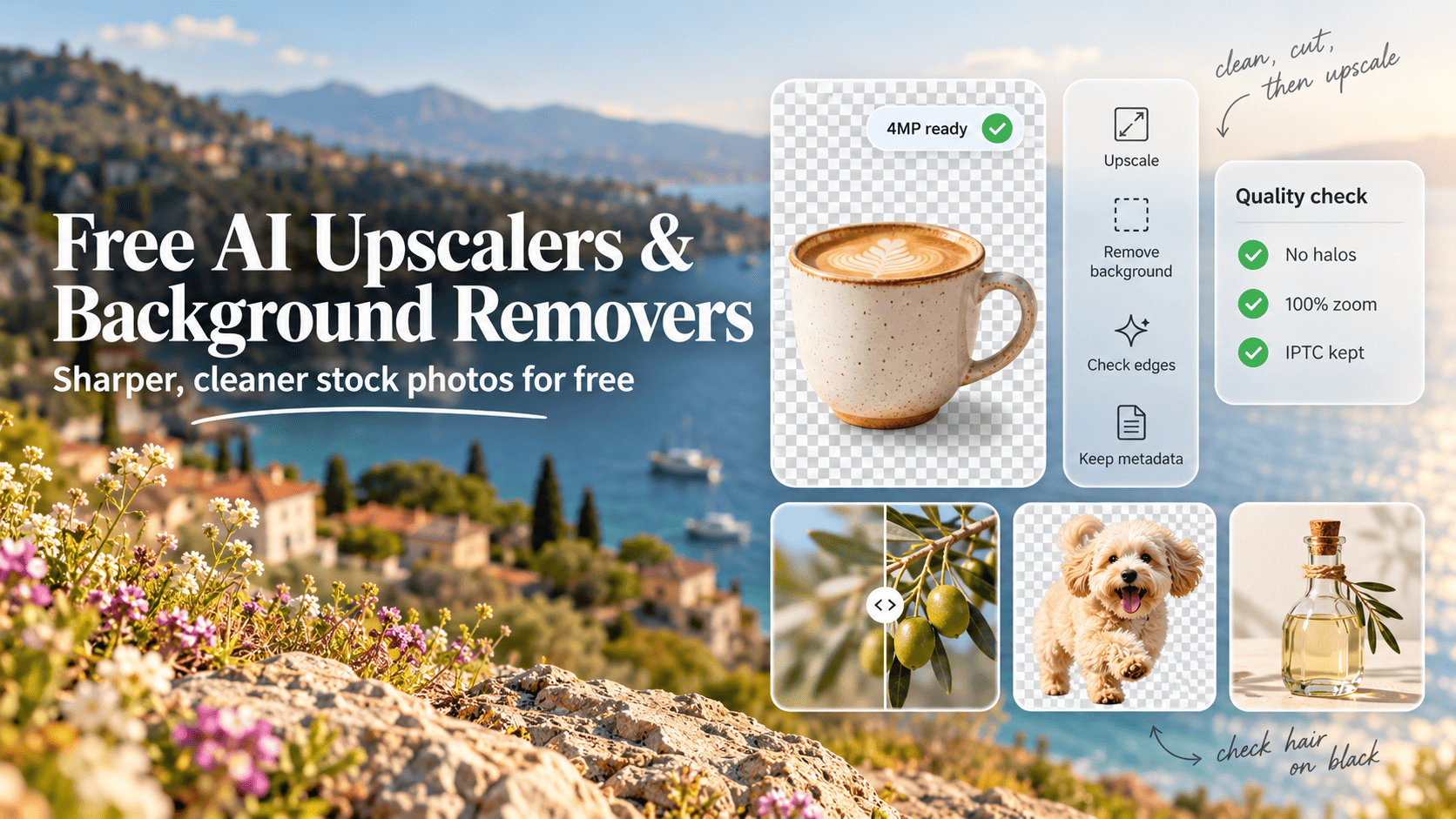
- Adobe Stock and Shutterstock both reject photos under 4 megapixels, so an upscaler is only useful if its free output clears that bar. LetsEnhance's free tier caps output at 8MP and adds a watermark.
- Most free web tiers are previews. remove.bg's free cutouts top out at 0.25MP (about 625 x 400 px), far too small for any stock agency.
- For free, full-resolution, unwatermarked work, the open-source pair of Upscayl (upscaling) and rembg (cutouts) is the only option with no credit limit, as long as your computer can run them.
- Photoroom's free plan is personal, non-commercial use only, and Canva's Background Remover needs a paid plan and shrinks anything over 10MP to 10MP.
- Upscaling a real photo doesn't, on its own, trigger Adobe Stock's generative AI label, but adding or changing the main subject with AI does. Shutterstock and Getty don't accept AI-generated content at all.
- Most web tools strip IPTC and EXIF. Copy it back with one exiftool command before you upload.
What these tools do, and what “free” really means
An AI upscaler adds pixels to a small image by predicting detail the camera didn’t record. An AI background remover separates the subject from everything behind it and gives you a transparent cutout. Stock contributors use the first to clear agency resolution minimums and the second to make isolated-object shots that sell well for design work.
“Free” almost never means unlimited. In practice you get one of four things: a low-resolution preview, a handful of sign-up credits, a watermark on the output, or a free app that runs on your own hardware. Only the last one gives you unlimited full-resolution files at no cost, and it needs a decent graphics card.
We reviewed each tool on three questions: what the free tier lets you export, whether that output is big and clean enough for an agency, and what happens to your metadata along the way. Every limit below was checked against the vendor’s own pricing or help pages at the time of writing (October 2026). These tiers change often, so check current limits before you build a workflow around one.
Agency rules to check first
Before you choose a tool, know what the agencies will accept. For Adobe Stock and Shutterstock, the number to remember is 4 megapixels, and a free tier that exports below that is no use for submissions.
| Agency | Minimum size | Format | AI-generated content |
|---|---|---|---|
| Adobe Stock (photos) | 4MP to 100MP, 45MB max | JPEG, sRGB | Accepted, must be labelled |
| Adobe Stock (PNG) | 4MP to 100MP, 45MB max | PNG with transparency | Accepted, must be labelled |
| Shutterstock | 4MP, 50MB browser upload | JPEG or TIFF | Not accepted |
| Getty Images / iStock | Check current contributor requirements | Check current requirements | Not accepted |
Sources: Adobe Stock photo requirements, Adobe Stock PNG requirements, Shutterstock technical requirements, Getty Images AI-free imagery policy. We couldn’t find a current public Getty page with a minimum pixel count. The only one we found was a 2008 submission document, so we’ve left that cell blank.
Upscaling and AI disclosure
Adobe Stock’s generative AI guidelines say you must tick “Created using generative AI tools” when an edit adds a new person, animal or object, significantly changes a human subject, or recolours the primary subject. Extending the background, removing distracting objects and recolouring the background don’t need the label. The guidelines don’t mention upscaling. Adobe’s own forum volunteers say plain upscaling of a real photo doesn’t need the label, and that the bigger risk is rejection for quality.
Shutterstock’s contributor policy states it “will not allow AI-generated content to be submitted by contributors”. It says nothing specific about AI-assisted edits to real photos.
Getty is the clearest of the three. Its policy says “both manual and AI-powered post-production tools may be used” for limited edits, but “we don’t permit new elements, subjects, or objects to be added to the imagery using AI”.
Rule of thumb: If an AI tool only enlarged or cleaned what the camera captured, it’s an edit. If it invented something a viewer would notice, such as a new object, a different face or a filled-in background, treat it as generative and label it on Adobe Stock or keep it away from Shutterstock and Getty.
The tools, reviewed
Each entry covers what the tool does, what the free tier gives you at the time of writing, and whether it suits stock work. The comparison table further down puts the numbers side by side.
LetsEnhance
A web upscaler with several models for photos, illustrations and print. The free tier gives 10 credits on sign-up, upscales to a maximum of 8 megapixels, and watermarks the output until you pay. Inputs can be up to 24MP. Paid plans start at US$9 a month billed annually for 100 credits and up to 256MP output. You can batch upload up to 20 images at a time.
Stock suitability: good quality, but the free watermark rules out submitting anything you make on the free tier. Use the 10 credits to judge whether a paid month is worth it.
Claid.ai
Built for e-commerce product and fashion photos. The free plan includes 50 credits plus 50 API credits, with downloads up to 128MP and uploads up to 10MB or 48MP. Upscaling costs 2 to 8 credits a go, so the 50 credits cover roughly 6 to 25 upscales, and background removal costs 1 credit. Claid’s default “Prime” upscaler is marketed on texture preservation (fabric that still looks like fabric, labels that stay legible), which is what stock reviewers look for. Batch processing sits in the paid Pro and Business plans. The pricing page doesn’t say whether free output carries a watermark, so check current limits.
Stock suitability: the strongest free resolution ceiling of the web tools, and well suited to product shots. Limited by the credit count.
remove.bg
The tool that made one-click background removal mainstream. Free cutouts are previews capped at 0.25 megapixels, about 625 x 400 pixels. Full resolution goes up to 50MP but costs credits, and a free account gets one bonus credit to test it. The API gives 50 free calls a month, at preview size. There’s a desktop app that processes whole folders, if you have credits.
The bigger news: the remove.bg site now carries a banner saying the standalone website “will no longer be available from 1 December 2026” and that background removal is moving to Canva. The pages we checked don’t say what happens to the API or unused credits.
Stock suitability: free previews are far below 4MP, so they’re no use for submissions. With the shutdown a month away, we wouldn’t build a new workflow on it.
Photoroom
A product-photo app for iOS, Android and web, with good cutouts and batch editing. Free exports are capped at 2000 x 2000 px on web and 2400 x 2400 px on iOS (4MP and about 5.8MP for a square image, so barely over the stock minimum), with 25 exports a week and 100 a month. The problem for contributors is the licence: Photoroom’s help centre says the Free plan is “for personal, non-commercial use only”. Selling stock is commercial use. The Photoroom API is a separate product: 10 free production calls, then US$0.02 per image, up to 6,000 px on the longest side.
Stock suitability: decent quality, but the free plan’s terms exclude stock sales. The API is a cheap paid option for batch work.
Adobe Photoshop
No free tier, but most serious contributors already pay for it, so it’s the baseline. Three features matter:
- Remove Background (a Quick Action) and Select Subject for cutouts, with Select and Mask for refining hair.
- Super Resolution in Camera Raw, which doubles the width and height, giving 4x the pixel count, and saves a new DNG next to the original.
- Generative Upscale, which Adobe lists among Photoshop’s generative AI features. According to a walkthrough of the 2026 release, it offers a Firefly model (up to 6144 x 6144 px) and Topaz Gigapixel (about 56MP) and Bloom (about 9MP) models. The Topaz models use generative credits.
Stock suitability: the best overall control and metadata handling, because everything happens inside one file. Be careful with Generative Upscale on Getty and Shutterstock uploads: both bar AI-generated content, and a generative model can add detail that wasn’t in the frame.
Canva
Canva’s Background Remover is “available on paid plans only”. It works on photos under 9MB, and anything over 10MP is reduced to 10MP after processing. That cap matters if you shoot on a 24MP or 45MP camera.
Stock suitability: fine for mock-ups and social graphics. For stock files, the 10MP reduction throws away resolution you might want to keep.
Clipdrop
A suite of quick image tools (cleanup, uncrop, relight) on the web. Clipdrop’s free plan gives 20 background removals and 20 upscales per 24 hours, with the upscaler limited to 2x (Pro goes to 16x). The pricing page doesn’t mention watermarks or batch processing. The upscaling API gives 100 free credits on login, with outputs up to 4096 x 4096 px.
Stock suitability: the most generous free web allowance we found. A 2x upscale turns a 1.5MP image into 6MP, enough to clear 4MP.
Pixelcut
A mobile-first editor with a web app. The free plan offers “limited” background removal and upscaling without stating a number, and exports without a watermark. Pro costs US$8 a month billed yearly and adds unlimited removals and upscales plus 1,000 batch exports a month.
Stock suitability: handy on a phone. Because the free quota isn’t published, check current limits before relying on it.
Cutout.pro
A suite of background removal, enhancement and upscaling tools on pay-per-image credits. The pricing page lists 5 free credits on sign-up and “free previews forever”. A full-resolution background removal costs 1 credit and an enhancement costs 2. The page doesn’t state preview resolution, watermark rules or a maximum size.
Stock suitability: fine for a few one-off cutouts. Five credits won’t cover a portfolio.
Rembg (open source)
A Python library and command-line tool by Daniel Gatis, MIT-licensed, that runs on your own machine. It ships several models, including U2-Net, ISNet, SAM and a set of BiRefNet models (general, portrait and others). Two features matter for stock work: rembg p input/ output/ processes a whole folder, and -a turns on alpha matting for soft edges like hair.
One licence trap: the README says model weights carry their own licences, and the default BRIA model “requires a paid agreement for commercial use”. If you’re selling the output, pick an MIT-friendly model such as a BiRefNet or ISNet variant and check its licence.
Stock suitability: full resolution, no watermark, no limits, scriptable. You need to be comfortable with a terminal.
Upscayl and Real-ESRGAN (open source)
Upscayl is a free desktop app for Windows, macOS and Linux, licensed AGPLv3, that uses Real-ESRGAN models (BSD-3-Clause) in a simple interface. It handles batch folders and offers several models. It needs a Vulkan-compatible graphics card, and the project warns that many integrated graphics chips won’t work. There’s also a paid Upscayl Cloud for people without the hardware.
Stock suitability: the best free route to full-resolution upscales with no watermark. Real-ESRGAN models can over-sharpen and paint in texture, so QA matters more here, not less.
Worth knowing: “Free” tools that run locally keep your files on your machine. Unreleased shoots, client work and model-released portraits never touch a third-party server.
Free tier comparison table
All figures were checked on vendor pages at the time of writing (October 2026). “Not stated” means the vendor’s pages don’t say, so test it yourself.
| Tool | Type | Free allowance | Max free output | Watermark (free) | Batch | Metadata kept? |
|---|---|---|---|---|---|---|
| LetsEnhance | Upscaler | 10 credits | 8MP | Yes | Up to 20 at once | Not stated |
| Claid.ai | Both | 50 credits + 50 API | 128MP | Not stated | Paid plans | Not stated |
| remove.bg | Remover | 1 credit, 50 previews/mo | 0.25MP preview | Not stated | Desktop app, credits | Not stated |
| Photoroom | Remover | 25/week, 100/month | 2000 px web, 2400 px iOS | Not stated | Yes (app) | Not stated |
| Photoshop | Both | None (paid) | Super Resolution: 4x pixels | No | Actions, batch | Yes (same file) |
| Canva | Remover | Paid plans only | Reduced to 10MP | n/a | Yes (paid) | Not stated |
| Clipdrop | Both | 20/day each | 2x upscale | Not stated | Not stated | Not stated |
| Pixelcut | Both | “Limited” | Not stated | No | Paid (1,000/mo) | Not stated |
| Cutout.pro | Both | 5 credits | Not stated | Not stated | Paid | Not stated |
| Rembg | Remover | Unlimited (local) | Full resolution | No | Folder mode | Not stated, test it |
| Upscayl | Upscaler | Unlimited (local) | Hardware-limited | No | Yes | Not stated, test it |
Watch out: The “Metadata kept?” column is almost entirely “Not stated” because almost no vendor documents it. Assume a web tool strips your IPTC captions, keywords and copyright notice until you’ve checked an output file yourself.
How to choose the right tool
Start from your bottleneck, then pick the tool. Most contributors need one of five things.
| Your situation | Best free pick | Why |
|---|---|---|
| Older 2 to 3MP files under the 4MP minimum | Upscayl, or Clipdrop 2x | Unlimited or daily allowance, no watermark |
| A handful of product shots to isolate | Claid.ai free credits | High output ceiling, good texture handling |
| Hundreds of cutouts, comfortable with a terminal | Rembg in folder mode | Unlimited, full resolution, scriptable |
| Already pay for Creative Cloud | Photoshop | Metadata stays put, best manual refinement |
| Working from a phone | Pixelcut | Free exports without a watermark |
| Need an API for a pipeline | Photoroom API or Claid API | Cheap per image, documented limits |
Two more filters. First, check whether the free tier allows commercial use at all, since Photoroom’s doesn’t. Second, look at the maximum output size before anything else. A brilliant cutout at 2000 x 2000 px is only 4MP, which leaves no room to crop. If you’re preparing free stock for your own projects rather than selling, the bar is lower, and any of these will do for a blog header pulled from our free stock directory.
The order of operations
Clean first, then cut out, then upscale, and keep the upscale as small as you can get away with. Each step makes the next one’s job easier.
- Fix the source. Shoot or export at the highest quality you have. Upscalers amplify JPEG blocks and phone noise, so run noise reduction on the original (or the RAW) first. Work in sRGB, since both Adobe Stock and Shutterstock deliver in sRGB.
- Cut out at native resolution. Segmentation models judge edges on real pixels. Run them on an upscaled file and they’ll find edges the upscaler invented, especially around hair.
- Upscale last, and only as far as you need. If a 3MP cutout needs to reach 4MP, a 2x upscale gives 12MP, plenty. Going 4x gives more chances for invented texture without making the file more saleable.
- Restore metadata, then QA. Copy the IPTC and EXIF back, then check at 100%.
There’s one exception. If the subject is tiny in the frame (a small product on a big table), a background remover may struggle to find clean edges at native size. In that case, upscale the whole image modestly first, cut out, then check edges very closely.
Common mistake: Upscaling a heavily compressed JPEG from a messaging app or a web download. The AI treats compression blocks as detail and sharpens them. Go back to the original file, or accept that the image isn’t a stock candidate.
Keep your IPTC and EXIF metadata
Your title, keywords, caption and copyright notice live in the file’s metadata, and agencies read them on upload. Most web tools return a fresh file without them. The fix is one exiftool command that copies everything from the original into the edited file:
exiftool -tagsfromfile original.jpg -all:all edited.jpgThe -all:all form keeps each tag in its original group, so IPTC stays IPTC. For a folder of processed files with matching names, exiftool can run the same copy across the whole directory. Re-check that the output’s pixel dimensions are the new ones, not the camera’s original values, before you upload.
Keeping your original files and EXIF is also your proof of ownership if an agency or buyer ever questions where an edited image came from. Provenance matters for your own site too: AI search tools and image search have to decide whose image is the original, and as Melbourne AI SEO consultant Saijo George, who curates this directory, often points out, intact creator metadata is one of the few signals you control.
QA at 100% zoom
Stock reviewers inspect at full size, so you should too. Open the original and the processed file side by side at 100% and pan the whole image, edge to edge. Most rejections come from a few predictable problems.
| Check | What to look for | Fix |
|---|---|---|
| Halos | Light or dark fringe around the cutout | Contract the mask 1 to 2 px, or decontaminate colours |
| Hair and fur | Chunky clumps, missing flyaways, background colour in strands | Alpha matting, or refine by hand in Photoshop |
| Glass and liquids | Solid opaque glass, or the old background showing through | Rebuild transparency manually, or shoot on a clean background |
| Hallucinated texture | Waxy skin, mushy foliage, repeating brick or fabric | Lower the upscale factor, try another model |
| Text and labels | Warped letters, invented characters | Use a less generative model, or retouch by hand |
| Compression | Blocky gradients in skies and shadows | Start from a cleaner source |
Check every cutout on a black background and then a white one. A fringe that hides on white is obvious on black, and buyers will drop your PNG onto both.
Quick check: For transparent PNGs, confirm the file actually has an alpha channel. Some tools export a “transparent” preview with a white background baked in, which Adobe Stock’s PNG rules don’t accept.
Glass, smoke and liquid are hard for automatic removers in general. They’re built to separate solid subjects from backgrounds, and semi-transparent objects confuse them. If isolated glassware is a big part of your portfolio, shoot it against a plain backdrop and build the mask yourself.
Batch and API options
Once you’re processing more than a few dozen images a week, uploading files one at a time through a browser gets slow. The free and cheap ways to batch:
- Rembg folder mode (
rembg p in/ out/, add-wto watch a folder) for unlimited local cutouts. - Upscayl batch for whole folders of upscales on your own GPU.
- Photoshop actions with File > Automate > Batch, which keeps metadata intact.
- remove.bg’s API gives 50 free preview calls a month, but plan around the December change.
- Photoroom’s API at US$0.02 per cutout, and Claid’s API with 50 free credits to start.
- Clipdrop’s upscaling API with 100 free credits on login.
Whatever you script, keep the untouched originals in their own folder and write processed files to a new one. Add the exiftool step to the end of the script so metadata goes back in automatically, and name outputs so you can trace each file to its source. Six months later, when an agency asks for the original, you’ll find it in seconds.
Where free tools fall short
Free tiers are best at the middle of the job: a reasonable cutout or a 2x upscale of a decent file. They fall short at the extremes. Very low-resolution sources (under 1MP) rarely produce a sellable upscale with any tool. Free tiers don’t handle RAW files, so do your RAW development first and export a 16-bit TIFF or high-quality JPEG before processing. Video upscaling is a different category of software, and none of the free tiers above handle it well.
There’s also an accuracy question. An upscaler that invents brickwork on a heritage building, or smooths a face into someone slightly different, changes what the photo records. For editorial or cultural subjects that can mislead buyers. If you’d be uncomfortable explaining an edit to the person who bought the image, leave it out.
For the legal side of reusing images you didn’t shoot, including what free stock licences allow when you modify a file, see our guide to free stock photo licences and legal risk.
Questions you may have
Is there a completely free AI upscaler with no watermark?
Yes, if you can run software locally. Upscayl is free and open source (AGPLv3) for Windows, macOS and Linux, has no credit limit and adds no watermark. The catch is hardware: the project says you need a Vulkan-compatible graphics card, and many integrated graphics chips won't work. Among web tools, Clipdrop's free plan includes a 2x upscaler (20 uses per 24 hours at the time of writing), which is the most generous free web allowance we found.
Can I sell AI-upscaled photos on Adobe Stock?
Generally yes, provided the result meets the 4MP minimum and passes quality review. Adobe's generative AI guidelines require the AI label when edits add, change or recolour the primary subject, and they don't mention upscaling at all. Volunteers on Adobe's contributor forum say plain upscaling of a real photo doesn't need the label. Reviewers still reject soft or artefact-heavy upscales, so don't enlarge tiny files.
Does Shutterstock accept photos edited with AI tools?
Shutterstock bans AI-generated content from contributors, stating that it 'will not allow AI-generated content to be submitted'. Its contributor policy doesn't address AI-assisted edits such as upscaling or background removal on a real photo, so there's no written answer either way. If an edit invents detail that wasn't in the original frame, treat it as risky and leave it out of your Shutterstock uploads.
What happens to remove.bg after 1 December 2026?
The remove.bg website says its standalone site 'will no longer be available from 1 December 2026 at 9:00am CET' and that background removal is moving into Canva (its API page also mentions Leonardo.Ai, which Canva owns). The pages we checked don't say clearly what happens to the API, desktop app or unused credits. If you rely on remove.bg in a workflow, use up paid credits and line up an alternative such as rembg or Photoroom's API before December.
Which free tool handles hair best?
No free tool handles hair reliably on every image, so test on your own files. In rembg you can try the BiRefNet portrait model and the alpha matting option (-a), which re-estimates partial transparency around fine strands but runs much slower. Whatever you use, check hair against both a black and a white backdrop at 100% zoom, where leftover background colour shows up as a halo.
Do I need a model release if I only removed the background?
Yes. Removing or replacing a background doesn't change who is in the photo, so the same release rules apply as for the original shot. Agencies require releases for recognisable people and some property regardless of how the file was edited. Our guide to free stock photo licences explains why releases, not the licence, are usually where the legal risk sits.
Should I submit cutouts as PNG or JPEG?
Use PNG with real transparency where the agency accepts it. Adobe Stock's PNG requirements call for a transparent background (not a solid colour), at least 4MP, sRGB and a 45MB maximum. Shutterstock's image requirements list JPEG and TIFF only, so there you'd submit the subject on a clean white or coloured background as a JPEG instead.
Can I use free stock photos from Unsplash or Pexels, upscale them, and sell them?
No. The Unsplash and Pexels licences let you edit images for your own projects, but both forbid selling unaltered copies or putting them into a competing stock service, and an upscale or cutout doesn't change who owns the photo. You'd also be submitting work you didn't create, which breaks every agency's contributor terms. Upscaling free stock is fine for your own designs and client work, though. Check the image's licence first.
Why did my upscaled image get rejected for quality?
Usually because the upscaler invented texture or smoothed detail, and the reviewer saw it at 100%. Common triggers are waxy skin, mushy foliage, repeated patterns in fabric or brick, and garbled text on signs or labels. Adobe's PNG and photo requirements also call out compression artefacts. Clean the source first, upscale only as far as you need (2x is safer than 4x), and compare against the original at full size before you submit.
Sources
- Upscayl on GitHubgithub.com
- Adobe Stock Contributor: Generative AI content guidelineshelpx.adobe.com
- Shutterstock Contributor Help: Content policy updates, AI-generated contentsubmit.shutterstock.com
- Adobe Stock Contributor: Technical requirements for PNG submissionshelpx.adobe.com
- Adobe Stock Contributor: Technical and legal requirements for photoshelpx.adobe.com
- Shutterstock Contributor Help: Technical requirements for imagessubmit.shutterstock.com
- Getty Images: AI-free imagery policygettyimages.com
- Adobe Community: Labelling real photos that were upscaled with AIcommunity.adobe.com
- LetsEnhance: Pricingletsenhance.io
- LetsEnhance Help: Getting startedhelp.letsenhance.io
- Claid.ai: Pricingclaid.ai
- Claid.ai: Prime upscalerclaid.ai
- remove.bg Help: Maximum image resolution and file sizeremove.bg
- remove.bg: APIremove.bg
- remove.bg: Desktop app for Windows, Mac and Linuxremove.bg
- Photoroom Help: Image resolution limits for exportshelp.photoroom.com
- Photoroom Help: Export limithelp.photoroom.com
- Photoroom Help: Photoroom planshelp.photoroom.com
- Photoroom: API pricingphotoroom.com
- Adobe Camera Raw: Super Resolution (2021 release notes)helpx.adobe.com
- Photoshop Essentials (2026): How to use Generative Upscale in Photoshopphotoshopessentials.com
- Topaz Gigapixeltopazlabs.com
- Canva Help: Background Removercanva.com
- Clipdrop: Pricingclipdrop.co
- Clipdrop API docs: Image upscalingclipdrop.co
- Pixelcut: Pricingpixelcut.ai
- Cutout.pro: Image pricingcutout.pro
- rembg on GitHubgithub.com
- Real-ESRGAN on GitHubgithub.com
- ExifTool FAQexiftool.org